Waiting For Caller (WFC)
The Waiting For Caller (WFC) Module
Section titled “The Waiting For Caller (WFC) Module”The wfc.js module provides a Waiting For Caller (WFC) type dashboard from a bygone era. Many traditional features are available including newer concepts for modern times. Node spy is left out as it feels like something that should be left in the past.
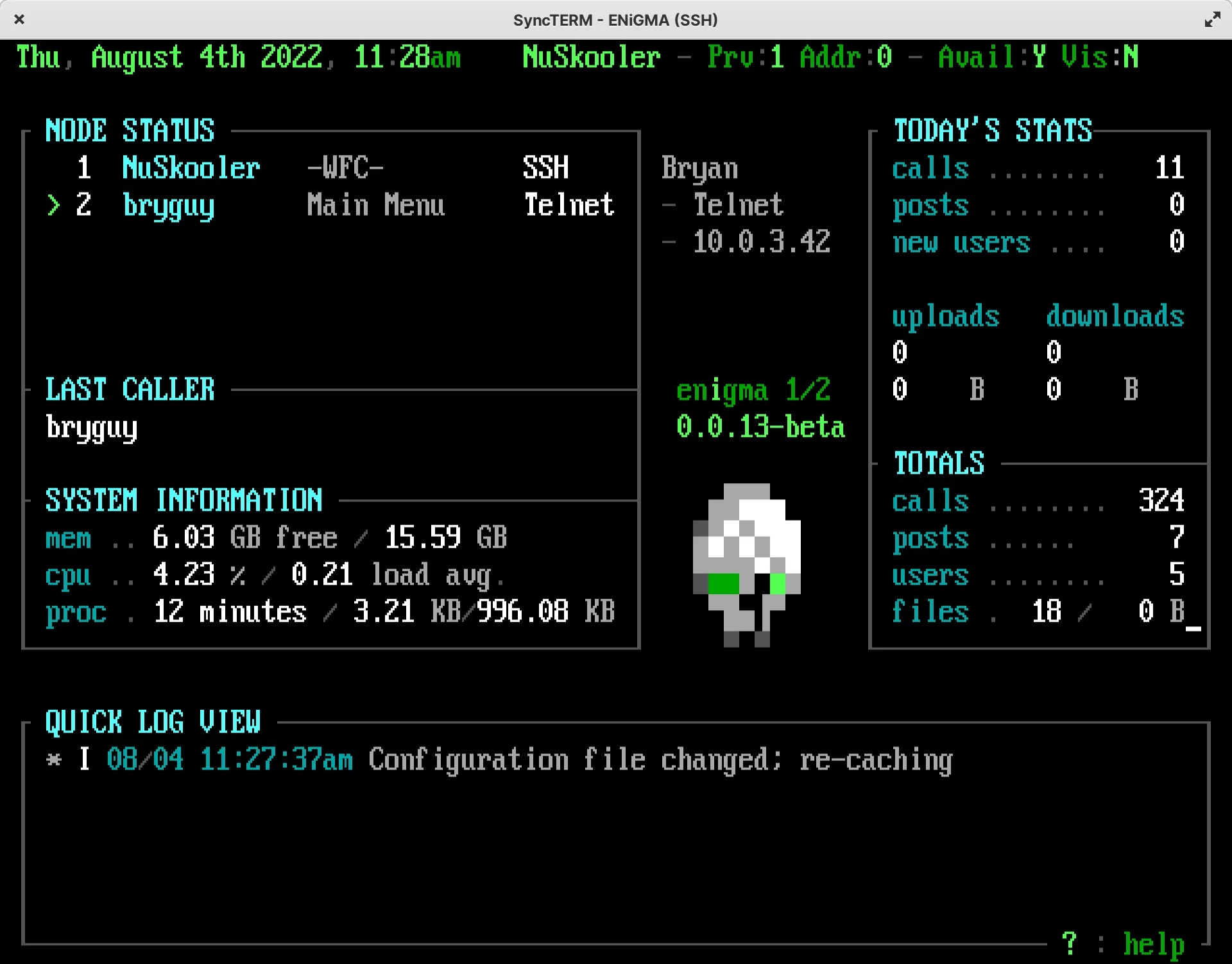
Accessing the WFC
Section titled “Accessing the WFC”By default, the WFC may be accessed via the !WFC main menu command when connected over a secure connection via a user with the proper ACS. This can be configured as per any other menu in the system. Note that ENiGMA½ does not expose the WFC as a standalone application as this would be much less flexible. To connect locally, simply use your favorite terminal or for example: ssh -l yourname localhost 8889. See Security below for more information.
Security
Section titled “Security”The system allows any user with the proper security to access the WFC / system operator functionality. The security policy is enforced by ACS with the default of SCAF2ID1GM[wfc], meaning the following are true:
- Securely Connected (such as SSH or Secure WebSocket, but not Telnet)
- Auth Factor 2+. That is, the user has 2FA enabled.
- User ID of 1 (root/admin)
- The user belongs to the
wfcgroup.
Adding your user to the wfc group:
# Replace USERNAME with your leet +op username./oputil.js user group USERNAME "+wfc"To change the ACS required, specify an alternative acs in the config block. For example:
mainMenuWaitingForCaller: { config: { // initial +op over secure connection only acs: ID1SC }}Configuration
Section titled “Configuration”Config Block
Section titled “Config Block”The WFC config block allows for the following keys:
| Key | Required | Description |
|---|---|---|
acs | Yes | See Security above. |
opVisibility | No | Visibility on entering the WFC: visible, hidden, or current (default, leave as-is). true/false are accepted as aliases for visible/hidden. |
quickLogLevel | No | Sets the log level for the quick log view. Defaults to info. See also Monitoring Logs. |
art | Yes | An object containing art specs: main for the WFC main view and help for a help screen. Optional: fullLog, messages, tasks and taskPrompt (see Tasks). |
confirmKickNodePrompt | No | Override the prompt name used for the “Kick selected node?” prompt. Defaults to confirmKickNodePrompt. |
pageIndicator | No | String shown in the node list for nodes with a pending sysop chat page. Defaults to !. |
chatMenuName | No | Override the menu name used for sysop chat. Defaults to sysopChat. |
nodeMessageMenuName | No | Menu used by S (send) and R (reply). Defaults to wfcNodeMessage, the +op-side copy of nodeMessage — separate so the sysop path can be themed without changing what users see. |
notifications | No | Where each kind of notification goes while you are at the WFC. See Notifications below. |
inboxMaxItems | No | How many messages the inbox holds before evicting. Read items are evicted before unread. Defaults to 50. |
messageAlert | No | Boolean. Send a BEL when a message arrives. Defaults to true. |
messagePreviewLength | No | Max length of {pendingNodeMessagePreview}. Defaults to 40. |
messageListFormat | No | Format for each row of the message list. Tokens below. |
messageDetailFormat | No | Format for the detail pane. Defaults to {text}. |
noMessagesText | No | Shown when the inbox is empty. |
unreadIndicator | No | Value of the {unreadIndicator} message token for an unread message; empty once read. Defaults to *. |
statusBar<Name>Format | No | Format for the %SB5 panel named <name>, e.g. statusBarUserFormat for a panel named user. See Status Bar below. |
statusBar<Name>ActiveFormat | No | Used instead of statusBar<Name>Format while the panel’s {count} is above zero. |
statusBarFormat | No | One-line header for an %SB5 with no panels and no text of its own. See Status Bar below. |
ticker | No | Activity marquee config. See Activity Ticker below. |
hideCursor | No | Boolean. Hide the terminal cursor while on the dashboard, which otherwise parks wherever the last refresh finished drawing. Defaults to true. |
taskListFormat / taskListFocusFormat | No | Row formats for the task list. See Tasks below. |
taskDateTimeFormat | No | Date/time format for {nextRun}, {lastRunAt} and friends on the task screen. Defaults to the theme’s short date/time format. |
taskStatusIndicators | No | Map of task status (running, overdue, failed, ok, never) to the {statusIndicator} shown for it. Defaults to *, !, X, +, -. |
taskManualScheduleText | No | {schedule} of a task without one. Defaults to manual. |
taskNoNextRunText | No | {nextRun} of a task that is not scheduled. Defaults to -. |
taskNeverRunText | No | {lastRunAt} and {lastResult} of a task that has not run. Defaults to never. |
taskDetailFieldFormat | No | Format of each line in the task detail pane. Tokens: {name}, {sep}, {value}. Defaults to |08{name}|07{sep}{value}. |
noTasksText | No | Shown in the detail pane when there are no tasks. |
runTaskPromptFormat | No | The question asked before running a task with confirm: true. Row tokens. Defaults to Run {desc}?. |
stopTaskPromptFormat | No | The question asked before stopping a task. Row tokens. Defaults to {stopVerb} {desc}?. |
taskStopVerbs | No | {stopVerb} for a task whose process can be killed (kill) and for one that can only be abandoned (abandon). Defaults to Kill and Abandon. |
taskPromptSuffix | No | Added after the question in the plain text prompt used without taskPrompt art. Defaults to |08[|15y|08/|15N|08]|07. |
taskActionResultFormats | No | Map of a run or stop result (started, alreadyRunning, disabled, unknown, killed, abandoned, notRunning, unavailable) to the message shown for it. Tokens: {name}, {desc}, {status}. |
Notifications
Section titled “Notifications”An +op sitting at the WFC is a node like any other, so achievements, node messages and time warnings are all aimed at their terminal. Painting any of those over the dashboard would corrupt it, so each kind is routed instead of displayed.
Routing is per notification type, and each type names zero or more sinks:
| Sink | Effect |
|---|---|
inbox | Held for you to read with the message key. Sends a BEL unless messageAlert is false. |
statusBar | Surfaces as a count in a %SB5 panel. |
log | Rely on the log and surface nothing further here. Achievements are logged by the achievement subsystem for every op, not only one sitting at the WFC, so this sink means “it is already in the quick log and full log viewers”. |
ticker | Fed to a %TK ticker. |
interrupt | Fall through to normal behaviour — displayed full screen with a pause. |
Defaults:
| Type | Default sinks | Why |
|---|---|---|
nodeMsg | inbox, statusBar | Read them when you choose to. |
achievement | log | Decorative; the log already shows it. |
achievementGlobal | log | As above — a busy board earns a lot of these. |
sysopPage | (none) | Already surfaced via {pendingPage*} and the node list indicator. |
timeWarning | (none) | Sysops are typically unlimited. |
system | interrupt | Anything untagged behaves exactly as before. |
Override in the WFC config block:
notifications: { nodeMsg: { sinks: [ inbox statusBar ] } achievementGlobal: { sinks: [ ticker ] }}Activity Ticker
Section titled “Activity Ticker”Add a %TK6 ticker to the WFC art and it becomes a board activity marquee, fed from the same system events that drive each user’s log.
ticker: { // 'cycle' advances when the ticker finishes a pass, so a message is // never cut off. A number of milliseconds uses a timer instead. rotateOn: "cycle" maxItems: 10 idleText: "{boardName} - {totalCalls} calls, {callsToday} today" events: { userLogin: "|15{userName}|07 logged in on node |15{nodeId}|07" userAchievementEarned: "|15{userName}|07 earned |14{title}|07 (+{points})" userUpload: "|15{userName}|07 uploaded |15{fileCount}|07 file(s)" }}Available event keys: userLogin, userLogoff, userUpload, userDownload, userPostMessage, userSendMail, userRunDoor, userSendNodeMsg, userAchievementEarned, and for scheduler tasks taskStarted, taskFinished, taskFailed and taskOverdue. An event with no format string is not shown, so the noisier ones are opt-in. The three above are shown by default, and so are taskFailed and taskOverdue.
taskFailed is not an event of its own: it is a taskFinished whose run failed, shown with the taskFailed format in place of the taskFinished one. Set taskFailed to "" and a failure is shown with the taskFinished format, if that is set. Starts and successful finishes are off by default because a task scheduled every hour would fill the marquee with them.
Format tokens: {userName}, {realName}, {nodeId}, {title}, {points}, {achievementTag}, {areaTag}, {doorTag}, {fileCount}, {minutesOnline}, {boardName}. Task events add {taskName}, {taskDesc}, {reason}, {byUser}, {error}, {duration}, {durationMs} and {timeoutMs}, and a finished one {stoppedBy}, {exitCode} and {signal}. idleText is formatted against the same custom MCI values as the rest of the dashboard.
Routing a notification type to the ticker sink puts it on the marquee too.
Node Messages
Section titled “Node Messages”With the default key bindings:
| Key | Action |
|---|---|
M | Open the message viewer |
S | Send a node message to the node selected in VM1. Selecting your own node sends to -ALL-. |
Inside the viewer: R replies to the sender, D or DEL dismisses, ESC/Q returns to the dashboard.
Both S and R go to wfcNodeMessage rather than the user-facing nodeMessage. It is the same module and form, shipping with the same art, but as its own menu entry you can retheme or reconfigure it without affecting the msg command users see. Override with nodeMessageMenuName.
The viewer uses the messages art spec with %VM1 (list) and %MT2 (detail). If that art is missing, a plain text list is shown instead, so the feature works before a theme provides art.
Message list and detail format tokens: {index}, {id}, {userName}, {realName}, {nodeId}, {type}, {read}, {unreadIndicator}, {timestamp}, {text}. {unreadIndicator} is unreadIndicator (default *) for an unread message and empty once it has been read; pad it, e.g. {unreadIndicator:<1}, to keep columns aligned.
Each list item’s text is replaced with messageListFormat before %VM1 formats it. To lay a row out with %VM1’s own itemFormat / focusItemFormat instead, set messageListFormat: "{text}" so {text} stays the bare message. messageListFormat also formats the plain text fallback list.
Status Bar
Section titled “Status Bar”Add a %SB5 to the WFC art for a status bar. Give it panel mode — a panels array in its MCI config — for full control: a panel’s own text template cannot see WFC values, so each panel is filled from code instead. The menu template ships a minimal SB5 with messages and pages panels, so placing %SB5 in art works with no further config.
An SB5 with no panels and no text of its own — for example in a theme without its own wfc.ans, which then gets the default theme’s art but none of its config — shows the whole header as one line from statusBarFormat. The default is {now} {currentUserName} Prv:{newPrivateMail} Addr:{newMessagesAddrTo} Avl:{availIndicator} Vis:{visIndicator} Msg:{pendingNodeMessageCount} Page:{pendingPageCount}. An SB5 that has a text template of its own, such as a clock, is left alone.
Every named panel is filled from statusBar<Name>Format (the panel name with its first letter upper-cased), formatted against the same values as custom MCI 10+ (see Theming) plus {count}:
| Panel | {count} | Default format |
|---|---|---|
messages | Unread messages in the inbox | MSG {count} |
pages | Pending sysop pages | PAGE {count} |
tasks | Running scheduler tasks | TASK {count} |
| any other | 0 | (none) |
While {count} is above zero, statusBar<Name>ActiveFormat is used instead if set, so a panel can light up when something is waiting. A panel with no format at all is left alone, so a static text label panel keeps working. The messages count updates the moment a message arrives, and the tasks count the moment a task starts or finishes; everything else follows the dashboard’s 5 second refresh.
Neither the menu template nor luciano_blocktronics has a tasks panel: luciano’s 78 columns are spoken for. To add one, give it a slot in your SB5 panels, for example { name: tasks, width: 7 }, and optionally statusBarTasksFormat / statusBarTasksActiveFormat.
config: { nowDateTimeFormat: "|10ddd MMM Do|08, |10h|08:|10mm|02a" statusBarNowFormat: "{now}" statusBarUserFormat: "|10{currentUserName}" statusBarMailFormat: "|02Prv|08:|10{newPrivateMail} |02Addr|08:|10{newMessagesAddrTo}" statusBarMessagesFormat: "|02MSG|08:|02{count}" statusBarMessagesActiveFormat: "|14MSG|08:|15{count}" statusBarPagesFormat: "|02PAGE|08:|02{count}" statusBarPagesActiveFormat: "|13PAGE|08:|15{count}"}0: { mci: { SB5: { width: 78 separator: " " panels: [ { name: now width: 21 } { name: user width: fill } { name: mail width: 14 } { name: messages width: 7 } { name: pages width: 7 } ] } }}A theme’s panels array replaces the menu’s wholesale. See Status Bar View for per-panel options (justify, styleSGR1, fillChar, overflow, …).
Theming
Section titled “Theming”The following MCI codes are available:
VM1: Node status list with the following format items available:text: Username or*Pre Auth*.action: Current action/menu.affils: Any affiliations for the authenticated user, else “N/A”.authenticated: Boolean whether the node is authenticated (logged in) or not.availIndicator: Availability indicator. Displayed viastatusAvailableIndicatorsor system theme. See also Themes.isAvailable: Boolean whether the node is available (e.g. for messaging) or not.isSecure: Is the node securely connected (e.g. SSL/SSH)?isVisible: Boolean whether the node is visible to others or not.node: The node ID.pageIndicator: Non-empty when the node has a pending sysop chat page. Defaults to!. Override withpageIndicatorin the WFCconfigblock.realName: Real name of authenticated user, or “N/A”.remoteAddress: A friendly formatted remote address such as an IPv4 or IPv6 address.serverName: Name of connected server such as “Telnet” or “SSH”.timeOn: How long the node has been connected.timeOnMinutes: How long in minutes the node has been connected.userId: User ID of authenticated node, or 0 if not yet authenticated.userName: User name of authenticated user or*Pre Auth*.visIndicator: Visibility indicator. Displayed viastatusVisibleIndicatorsor system theme. See also Themes.
VM2: Quick log with the following format keys available:timestamp: Log entry timestamp inquickLogTimestampFormatformat.level: Log entry level from Bunyan.levelIndicator: Level indicators can be overridden with thequickLogLevelIndicatorskey (see defaults below).quickLogLevelIndicators: A map defaulting to the following:trace:Tdebug:Dinfo:Iwarn:Werror:Efatal:F
nodeId: Node ID.sessionId: Session ID.quickLogLevelMessagePrefixes: A map of log level names (see above) to message prefixes. Commonly used for changing message color with pipe codes, such as|04for red errors.message: Log message.
MT3orET3: Selected node status information. May be a single or multi-line view.- Set
nodeStatusSelectionFormatto the format desired, using\nfor line feeds in anMTview. The available format keys are the same as the node status list above.
- Set
SB5: Optional status bar in panel mode. Each named panel is filled fromstatusBar<Name>Format. See Status Bar above.TK6: Optional activity ticker. See Activity Ticker above.- MCI 10…99: Custom entries with the following format keys available (also available to
%SB5panel formats and tickeridleText):boardName: The board name fromgeneral.boardName.nowDate: Current date in thedateFormatstyle, defaulting toshort.nowTime: Current time in thetimeFormatstyle, defaulting toshort.now: Current date and/or time innowDateTimeFormatformat.processUptimeSeconds: Process (the BBS) uptime in seconds.totalCalls: Total calls to the system.totalPosts: Total posts to the system.totalUsers: Total users on the system.totalFiles: Total number of files on the system.totalFileBytes: Total size in bytes of the file base.callsToday: Number of calls today.postsToday: Number of posts today.uploadsToday: Number of uploads today.uploadBytesToday: Total size in bytes of uploads today.downloadsToday: Number of downloads today.downloadBytesToday: Total size in bytes of downloads today.newUsersToday: Number of new users today.currentUserName: Current user name.currentUserRealName: Current user’s real name.lastLoginUserName: Last login username.lastLoginRealName: Last login user’s real name.lastLoginDate: Last login date indateFormatformat.lastLoginTime: Last login time intimeFormatformat.lastLogin: Last login date/time.totalMemoryBytes: Total system memory in bytes.freeMemoryBytes: Free system memory in bytes.systemAvgLoad: System average load.systemCurrentLoad: System current load.newPrivateMail: Number of new private mail for current user.newMessagesAddrTo: Number of new messages addressed to the current user.availIndicator: Is the current user available? Displayed viastatusAvailableIndicatorsor system theme. See also Themes.visIndicator: Is the current user visible? Displayed viastatusVisibleIndicatorsor system theme. See also Themes.processBytesIngress: Ingress bytes since ENiGMA started.processBytesEgress: Egress bytes since ENiGMA started.pendingPageCount: Number of pending sysop chat pages across all nodes.pendingPageUser: Username of the most recent pending page, or empty.pendingPageNode: Node ID of the most recent pending page, or empty.pendingPageMessage: Message/reason of the most recent pending page, or empty.pendingNodeMessageCount: Number of unread messages in the inbox.pendingNodeMessageTotal: Total messages in the inbox, read or not.pendingNodeMessageUser: Username who sent the most recent unread message, or empty.pendingNodeMessageNode: Node ID of that sender, or empty.pendingNodeMessagePreview: Truncated text of that message. Length viamessagePreviewLength.runningTaskCount: Number of scheduler tasks running now, includingmanual: falseones the task screen does not list.overdueTaskCount: Number of running tasks past theirtimeout.
T opens the task screen: the event scheduler’s events, to see how they last ran and to run or stop them by hand. Events with manual: false are not listed, and those with enabled: false do not exist as far as the scheduler is concerned.
| Key | Action |
|---|---|
Enter / R | Run the selected task. A task with confirm: true asks first. |
X | Stop the selected task’s run: its process is killed, or a @method, which cannot be stopped, is abandoned. Always asks first. |
F | Refresh now |
PgUp / PgDn | Scroll the detail pane |
ESC / Q | Back to the dashboard |
A task runs in the background on the server, as it would on its schedule, so you can go back to the dashboard while it runs; the quick log, the ticker and a tasks status bar panel follow it from there. The run is recorded with you as byUser and wfc as its reason, and the WFC logs who ran or stopped what from which node. The screen refreshes every second while any task is running, otherwise every 5 seconds, and at once when a task starts, finishes or goes overdue, or when an edit to config.hjson changes the events. A task removed from the config while it runs stays listed, marked as removed, until it finishes. The selection stays on the same task across refreshes.
The result of a run or stop (started, already running, killed, abandoned, …) is put in {taskActionResult} for the custom views, or written at %XY3 when the art shows no custom view with it.
The task screen uses the tasks art spec (form 5):
VM1: the task list. Each row can use the tokens below, throughtaskListFormatandtaskListFocusFormat, or elseVM1’s ownitemFormatandfocusItemFormat.MT2: the selected task in full: description and schedule, next run, whether it is running (since when, overdue since when, and what stopping it would do), and its last run (start, duration, result and error, reason, who ran it, exit code or the signal that ended it, who stopped it, whether it overran) with the tail of its output. It is word-wrapped to the view’s width.XY3: where the confirm prompt is drawn.- MCI 10…99: custom entries formatted from
tasksInfoFormat10,tasksInfoFormat11and so on, with{taskCount},{runningTaskCount},{overdueTaskCount},{failedTaskCount},{selectedTaskName},{selectedTaskDesc},{taskActionResult},{now}and everything the dashboard’s custom entries get.
One prompt serves both run and stop: the taskPrompt art spec (form 6), drawn at form 5’s %XY3, with a %TL2 that gets the question (runTaskPromptFormat or stopTaskPromptFormat) and a %TM1 yes/no. Keep it to a single line.
Without the tasks art a plain text list is shown instead, with the same keys plus up/down or 1-9 to select, and without the taskPrompt art the question is asked on a plain [y/N] line. Both work before a theme has art for them.
Row tokens:
| Token | Value |
|---|---|
{index} | 1-based position |
{name} | The event’s name |
{desc} | Its desc, else its name |
{schedule} | Its schedule, or taskManualScheduleText (manual) |
{nextRun} | When it next runs on its schedule, in taskDateTimeFormat, or taskNoNextRunText (-) |
{status} | running, overdue, failed, ok or never |
{statusIndicator} | The taskStatusIndicators entry for {status} |
{lastRunAt} | When the last run started, or taskNeverRunText (never) |
{lastResult} | ok, failed, or taskNeverRunText |
{lastError} | The last run’s error, if it failed |
{duration} / {durationMs} | How long the last run took, e.g. 4m 05s / in milliseconds |
{byUser} | Who ran it by hand, if anyone |
{reason} | Why the last run ran (Schedule, wfc, …) |
{exitCode} | The last run’s exit code, for an @execute |
{signal} | The signal that ended the last run’s process, e.g. SIGHUP when it was stopped; {exitCode} is then empty |
{stoppedBy} | Who stopped the last run, if anyone |
{runCount} | Runs since startup |
{running} / {overdue} | Booleans |
{removed} | Boolean: taken out of config.hjson while running; listed until the run finishes |
{startedAt} / {elapsed} | When the current run started / how long it has been going |
{overdueSince} | When the current run went past its timeout |
{stopAction} / {stopVerb} | kill or abandon / the taskStopVerbs entry for it |
Sysop Chat / Break Into Chat
Section titled “Sysop Chat / Break Into Chat”The WFC supports receiving pages from users and initiating chat with any connected node.
Receiving a Page
Section titled “Receiving a Page”When a user pages the sysop:
- An alert is sent according to
sysopChat.pageAlertinconfig.hjson—bel(default, sends\x07to sysop terminals),none(silent), orcommand(runs a shell command). - Sysops not at the WFC receive an interrupt notification with the user’s name, node, and message.
- Sysops at the WFC see the page reflected immediately via
pendingPageCount,pendingPageUser,pendingPageNode, andpendingPageMessagecustom tokens, plus apageIndicatoron the paging node’s row inVM1. No duplicate interrupt is queued for them.
Breaking Into Chat
Section titled “Breaking Into Chat”With a node selected in VM1, press B to break into chat. If the selected node has a pending page, that session is accepted; otherwise a new sysop-initiated session is created. Both parties enter the sysopChat menu directly — no pre-chat confirmation is shown to the user.
System Config (sysopChat block in config.hjson)
Section titled “System Config (sysopChat block in config.hjson)”| Key | Default | Description |
|---|---|---|
pageCooldownMinutes | 5 | Minimum minutes a user must wait between pages. |
pageAlert | bel | Alert mode on page arrival: bel (sends \x07 to sysop terminals), none (silent), or command (runs pageAlertCommand). |
pageAlertCommand | '' | Shell command run when pageAlert is command. Tokens: {userName}, {nodeId}, {message}. Example: 'notify-send "Page from {userName}" "{message}"' |