WebSocket / Web Interface Server
WebSocket Login Server
Section titled “WebSocket Login Server”The WebSocket Login Server provides secure (wss://) as well as non-secure (ws://) WebSocket login access. This is most commonly combined with a browser-based client such as VTX or fTelnet to give users a web browser entry point to your BBS.
Configuration
Section titled “Configuration”Enable the WebSocket server by adding a webSocket block to loginServers in config.hjson:
loginServers: {    webSocket: {        ws: {            // non-secure ws:// — suitable for LAN/local testing or when            // sitting behind a TLS-terminating reverse proxy (see below)            port: 8810            enabled: true
            // optional: bind to a specific address (e.g. loopback when proxied)            address: 127.0.0.1        }        wss: {            // secure wss:// — ENiGMA handles TLS directly            port: 8811            enabled: true            certPem: /path/to/https_cert.pem            keyPem:  /path/to/https_cert_key.pem        }
        // Set proxied: true when a TLS-terminating reverse proxy (e.g. nginx)        // forwards connections to ENiGMA's plain ws:// port.  ENiGMA will treat        // any connection carrying the "X-Forwarded-Proto: https" header as        // secure, which is required for 2FA/OTP and other security-sensitive        // features.  Leave false (default) if ENiGMA is exposed directly.        proxied: true    }}
Restart ENiGMA and confirm the server started in the logs:
INFO: Listening for connections (server="WebSocket (insecure)", port=8810)INFO: Listening for connections (server="WebSocket (secure)", port=8811)Deployment Architectures
Section titled “Deployment Architectures”There are two supported ways to expose a secure WebSocket endpoint to browser clients.
Option A — Reverse Proxy (recommended)
Section titled “Option A — Reverse Proxy (recommended)”A reverse proxy such as nginx or Caddy handles TLS and forwards plain ws:// traffic to ENiGMA. This is the most common setup because it reuses your existing web certificate and keeps ENiGMA out of the certificate-management business.
Browser (wss://) → nginx (TLS termination) → ENiGMA ws:// port 8810ENiGMA config:
loginServers: { webSocket: { ws: { port: 8810 enabled: true address: 127.0.0.1 // loopback only — nginx is the public face } proxied: true // trust X-Forwarded-Proto from the proxy }}nginx location block (inside your existing server { ... } block with a valid TLS certificate):
location /wss { proxy_pass http://127.0.0.1:8810; proxy_http_version 1.1; proxy_set_header Upgrade $http_upgrade; proxy_set_header Connection "Upgrade"; proxy_set_header Host $host; proxy_set_header X-Forwarded-Proto https;}Point wsConnect in vtxdata.js to wss://your-hostname.here/wss.
See nginx WebSocket proxying for more detail.
Option B — ENiGMA handles TLS directly
Section titled “Option B — ENiGMA handles TLS directly”ENiGMA listens on a dedicated wss:// port and manages the certificate itself. Useful if you don’t already run a reverse proxy.
Browser (wss://) → ENiGMA wss:// port 8811ENiGMA config:
loginServers: { webSocket: { wss: { port: 8811 enabled: true certPem: /path/to/https_cert.pem keyPem: /path/to/https_cert_key.pem } }}Point wsConnect in vtxdata.js to wss://your-hostname.here:8811.
VTX Web Client
Section titled “VTX Web Client”ENiGMA supports the VTX WebSocket client for in-browser BBS access. Example deployment: Xibalba.
-
Enable the WebSocket server as described above. For a public deployment use Option A or B.
-
Download VTX_ClientServer. Visit github.com/codewar65/VTX_ClientServer and download the release you intend to use. Unpack it to a temporary directory.
-
Download the example HTML file. Save vtx.html to your webserver root.
-
Create the asset directory structure:
├── assets│ └── vtx└── vtx.html -
Copy VTX client files. From the unpacked VTX_ClientServer package, copy the contents of the
wwwdirectory intoassets/vtx/. -
Create
assets/vtx/vtxdata.js:var vtxdata = {sysName: "Your Awesome BBS",wsConnect: "wss://your-hostname.here:8811", // or wss://your-hostname.here/wss for Option Aterm: "ansi-bbs",codePage: "CP437",fontName: "UVGA16",fontSize: "24px",crtCols: 80,crtRows: 25,crtHistory: 500,xScale: 1,initStr: "",defPageAttr: 0x1010,defCrsrAttr: ['thick', 'horizontal'],defCellAttr: 0x0007,telnet: 1,autoConnect: 0,wsProtocol: 'telnet',wsDataType: 'arraybuffer',};Update
sysNameandwsConnectfor your system. Note thatdefCrsrAttrmust be an array, not a hex value — passing a hex integer here causes a black screen. -
Navigate to
https://your-hostname.here/vtx.html. You should see a splash screen like: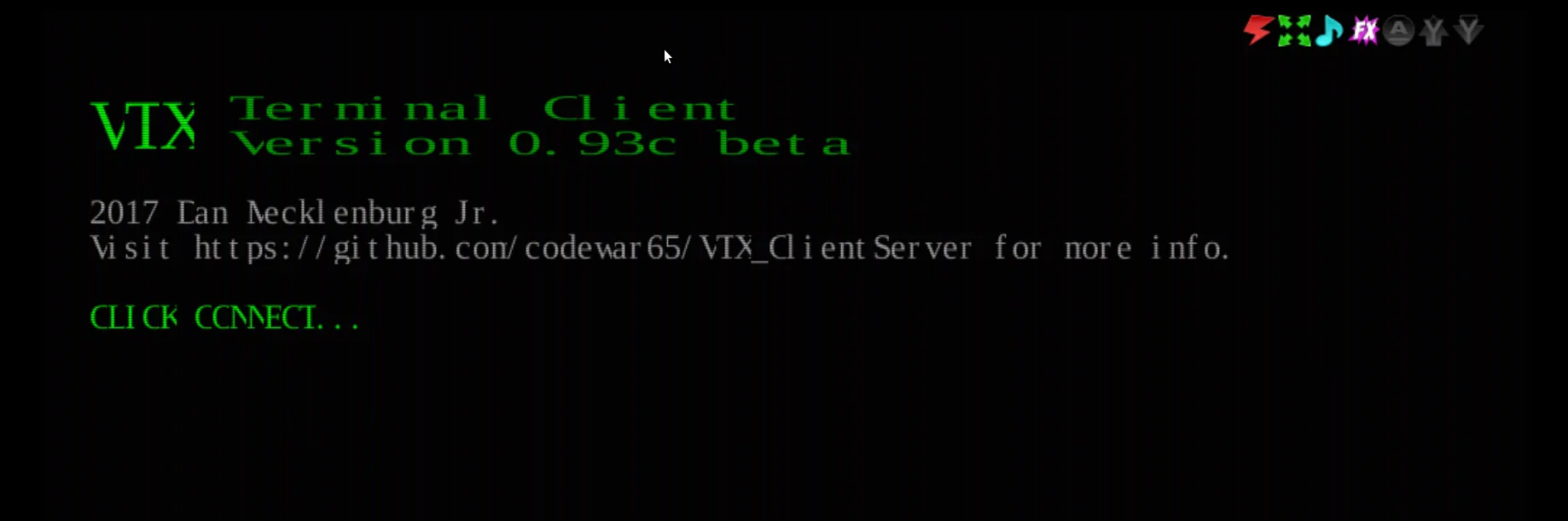
Configuration Reference
Section titled “Configuration Reference”| Key | Required | Description |
|---|---|---|
ws.enabled | Enable non-secure ws:// listener. Default: false. | |
ws.port | Port for ws://. Default: 8810. | |
ws.address | Bind address for ws://. Omit to bind all interfaces. | |
wss.enabled | Enable secure wss:// listener. Default: false. | |
wss.port | Port for wss://. Default: 8811. | |
wss.address | Bind address for wss://. | |
wss.certPem | Yes (if wss enabled) | Path to TLS certificate in PEM format. |
wss.keyPem | Yes (if wss enabled) | Path to TLS private key in PEM format. |
proxied | Set true when behind a TLS-terminating proxy. Trusts X-Forwarded-Proto: https. Default: false. |